
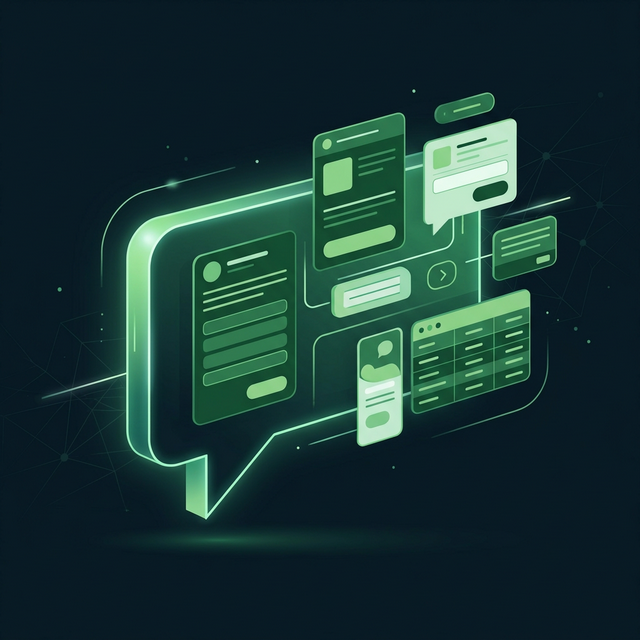
Most AI chat interfaces are limited to plain text and markdown. You ask a question, you get a wall of words. But what if an AI agent could render a pricing table, a product comparison card, or even an interactive form — right in the conversation?
That’s exactly what widgets do in Lyzn.
What Are Widgets?
Widgets are dynamic UI components that AI agents can spawn directly inside a chat conversation. Instead of responding with text like “Here are the top 5 products…” followed by a bulleted list, a Lyzn-powered agent can render a fully styled product card grid, a sortable data table, or a multi-step form — all inside the chat.
At the core, a widget is defined by two things:
- A JSX-like template — describes the structure and layout of the component
- A data context — the dynamic values that populate the template
When an AI agent decides to display a widget, Lyzn’s backend compiles the template with the data to produce a structured JSON tree. The client then renders that tree as native UI components.
Why Widgets?
Traditional chatbot UIs force everything into a linear text stream. This works for simple Q&A, but breaks down when you need to present structured information, collect user input, or create interactive workflows.
Widgets solve three critical problems:
1. Rich Data Presentation
Tabular data, charts, image galleries, and comparison cards are fundamentally better presented as structured UI than as markdown. A widget lets the AI agent choose the right visual format for the data it has.
2. User Interaction
Widgets aren’t just display-only — they can be interactive. Buttons, forms, date pickers, checkboxes, and text inputs can all be embedded inside a widget. When a user interacts with these elements, the response flows back to the AI agent, creating a bidirectional conversation loop.
3. Developer Extensibility
Developers can create custom widget components with their own templates and publish them to the widget marketplace. Any agent workflow can then use those components, making it easy to build specialized UIs for specific use cases.
How Widgets Work Under the Hood
The Template Compiler
At the heart of the widget system is a JSX-like template compiler written in Go. It takes a template string that looks similar to React JSX and compiles it against a data context to produce a JSON widget tree.
Here’s a simplified example of a widget template:
<Card padding={16}>
  <Text value={title} size="lg" weight="bold" />
  <Text value={description} color="muted" />
  <HStack gap={8}>
    {items.map((item) => (
      <Badge value={item.label} color={item.color} />
    ))}
  </HStack>
</Card>
When compiled with data like:
{
  "title": "Monthly Report",
  "description": "Your usage summary for March 2026",
  "items": [
    { "label": "API Calls: 1,240", "color": "blue" },
    { "label": "Cost: $4.20", "color": "green" }
  ]
}
The compiler produces a structured JSON tree that the client renders as native components.
Expression Support
The template compiler supports a rich set of expressions:
- Variable binding —
{title},{user.name} - Array mapping —
{items.map((item) => <Component value={item.name} />)} - Ternary operators —
{isActive ? 'Active' : 'Inactive'} - Conditional rendering —
{showBadge && (<Badge value="New" />)} - Arithmetic —
{price * quantity},{total + tax} - Comparisons —
{score >= 80},{count === 0} - Logical operators —
{a || b},{x && y} - Template strings —
{`Hello, ${name}!`} - Optional chaining —
{user?.profile?.avatar}
This means widget templates can handle complex data transformations and conditional UI logic entirely server-side before rendering.
Schema Auto-Generation
One of the system’s most powerful features is automatic schema generation. Given a widget template, Lyzn’s backend analyzes the variable references, .map() expressions, and attribute usage patterns to generate a JSON schema describing exactly what data the template expects.
This schema is then provided to the AI model as part of its tool definition. When the AI decides to use a widget, it knows precisely what data shape to generate — no guessing, fewer errors.
For example, the compiler can infer that a variable used in src={item.imageUrl} is a string URL, while one used in disabled={isLoading} is a boolean.
Two Ways to Use Widgets
1. AI Widget Tool (AI-Driven)
The Widget Component Tool node in LyznFlow gives an AI agent the ability to autonomously decide when and which widget to render. The developer selects which widget components the agent has access to, and the AI generates the appropriate data using the auto-generated schema.
The flow works like this:
- The user sends a message
- The AI agent processes the message and determines a widget would be helpful
- The AI generates a JSON payload matching the component’s schema
- The backend compiles the template with the AI-generated data
- The compiled widget tree is sent to the client for rendering
2. Send Widget Node (Developer-Driven)
The Send Widget node lets developers programmatically send a widget at a specific point in a workflow. Instead of the AI deciding, the developer explicitly chooses which component to render and provides the data — either hardcoded or pulled from previous nodes in the workflow.
This is useful for structured interactions like order confirmations, onboarding forms, or dashboard summaries where the UI should be deterministic.
Interactive Widgets and User Responses
What makes Lyzn’s widget system truly powerful is bidirectional interaction. Widgets can contain interactive elements — buttons, text inputs, select dropdowns, checkboxes, radio groups, date pickers, and full forms.
When a widget includes a lyzn.respondToWidget action (for example, attached to a Button’s onPress event), the execution engine pauses and waits for the user’s response. Once the user interacts — fills out a form, selects an option, clicks a button — the response data flows back into the workflow, and execution continues.
This creates a powerful pattern: the AI can ask for structured input through a well-designed form, then process the response with full context.
Supported Interactive Components
| Component | Description |
|---|---|
| Button | Triggers actions or submits data back to the workflow |
| Input | Single-line text field for collecting user input |
| Textarea | Multi-line text input |
| Select | Dropdown menu with predefined options |
| Checkbox | Boolean toggle or multi-select options |
| RadioGroup | Single-select from a group of options |
| DatePicker | Calendar-based date selection |
| Form | Groups interactive elements with coordinated submission |
The Widget Playground
Developers building custom widgets can use the Widget Playground in LyznFlow to write templates, provide test data, and see a live preview of how the compiled widget will render. The playground also shows the auto-generated schema, making it easy to understand what data the AI needs to produce.
Building Your Own Widget
Creating a custom widget component involves:
- Write a JSX-like template using Lyzn’s component library (Card, Text, Image, HStack, VStack, Badge, Avatar, Button, etc.)
- Test it in the Playground with sample data
- Save the component — it gets stored with an auto-generated schema
- Use it in a workflow — attach it to an AI Widget Tool node or Send Widget node
The component is available to any of your agent workflows, and the AI automatically understands how to populate it thanks to schema generation.
Why This Matters
The widget system transforms AI agents from text-only responders into full-stack interactive experiences. Instead of building separate UIs for every AI interaction, developers define reusable widget components that any agent can leverage.
This is particularly powerful for:
- Customer support agents that need to show order details, tracking cards, or refund forms
- Data analysis agents that present findings in tables, charts, and summary cards
- Onboarding flows where users fill out forms and make selections within the conversation
- E-commerce agents that display product cards, shopping carts, and checkout forms
Widgets bridge the gap between conversational AI and application-level UI — all without leaving the chat.
Want to build your own widgets? Head to LyznFlow and open the Widget Playground to get started.